




Two hundred hosts in an environment, fifty of them test servers that fill their disks every night and wake up the on-call engineer. Raising the threshold globally would hide real production problems; raising it host by host is unmanageable. This is exactly the use case for Dynatrace host groups: a set of hosts that share the same configuration.
A host group looks harmless, just a parameter passed when installing OneAgent. Yet it shapes process group and service detection, anomaly thresholds, OneAgent updates, tagging and management zones. Chosen badly, it is hard to fix: changing a host’s host group recalculates the IDs of its process groups.
This guide explains what host groups are for, how to pick a split that will last, then how to assign them (installation, oneagentctl, UI, Kubernetes) and check the result. It applies to Dynatrace Managed and Dynatrace SaaS: the mechanism is the same, only a few views differ.
What Dynatrace host groups are for
A host group is a set of hosts you can configure as one. Three rules define it: each host belongs to at most one host group, the assignment is static (carried by OneAgent on the host), and it only changes through oneagentctl, remote configuration management or a OneAgent reinstall.
1. Settings per group
Infrastructure anomaly detection thresholds and the OneAgent update policy can be defined at host group level, inheriting from the global settings or overriding them. In the Settings API, the builtin:anomaly-detection.infrastructure-hosts schema accepts the HOST, HOST_GROUP and environment scopes. For updates, the Configuration API exposes GET /api/config/v1/hostgroups/{id}/autoupdate (ReadConfig scope): the group configuration applies to OneAgents whose setting is INHERITED.
2. A split of process groups and services
This is the least-known effect. When the same process runs in two different host groups, Dynatrace creates one process group per host group. Services are therefore split per host group too. In practice: putting test and production in two separate host groups separates their process groups and services, so you can configure and alert on them differently.
3. Context for tags and management zones
The host group name is an attribute you can use in automatic tagging rules and management zone rules. Metric events can also filter entities on HOST_GROUP_NAME. For setting up tags and zones, see management zones and tagging.
Choosing a split that lasts
Since a host has only one host group, the split must answer a single question: which hosts should share the same monitoring configuration? In practice, environment + role works well:
| Host group | Content | Typical setting |
|---|---|---|
prod_payment_web |
Production payment front ends | Strict thresholds, scheduled updates |
prod_payment_db |
Production databases | Specific disk rules |
test_payment |
Test, all roles | Relaxed thresholds, automatic updates |
What not to encode in a host group: the owning team, the cost centre, or any attribute that changes often or overlaps. That information belongs in tags or management zones, which accept several values and change without touching the hosts.
Naming constraints: alphanumeric characters, hyphens, underscores and periods only; no dt. prefix; 100 characters maximum. Set a convention before the first rollout: renaming means changing host group.
Defining Dynatrace host groups step by step
Step 1 — When installing OneAgent
Pass the --set-host-group parameter to the installer. On Linux:
sudo /bin/sh Dynatrace-OneAgent-Linux.sh --set-host-group=prod_payment_webOn Windows, the same parameter works with the EXE installer, and the name can also be typed in the installer UI. Download details and other parameters are in installing OneAgent on Linux.
Step 2 — After installation, with oneagentctl
The tool lives in /opt/dynatrace/oneagent/agent/tools by default on Linux and requires root privileges.
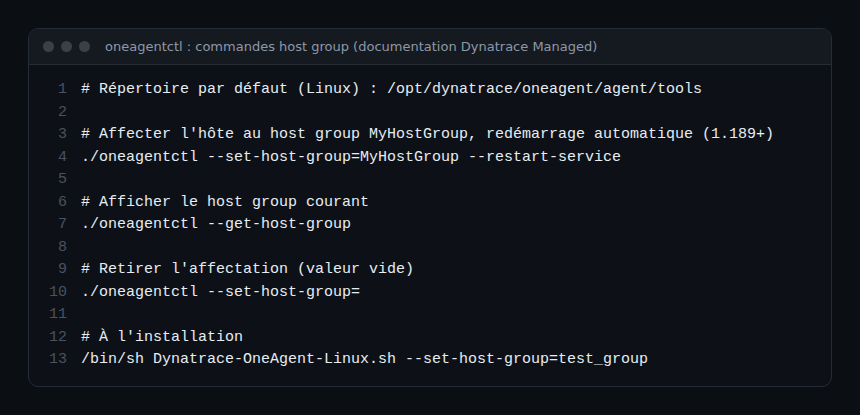
Changing host group requires restarting OneAgent and the monitored services. --restart-service (OneAgent 1.189+) restarts OneAgent; plan the application restarts in a maintenance window.
Step 3 — From the UI, in bulk
- Go to Deployment Status, OneAgents tab.
- Select the hosts, then modify host group at the bottom of the page and Run action.
- Choose Specify host group to be assigned (or Remove current host group assignment), Next, review and Apply changes.
OneAgent restarts automatically once the changes are applied. This is remote configuration management: handy for fixing a batch of hosts without an SSH session.
Step 4 — On Kubernetes, in the DynaKube
With Dynatrace Operator, declare the host group in the DynaKube resource with the hostGroup field of .spec.oneAgent. The documentation presents it as the preferred method over the now obsolete --set-host-group argument; if both are set, the field takes precedence.
# Excerpt of a DynaKube resource (the rest of the resource is unchanged)
spec:
  apiUrl: https://{your-domain}/e/{environment-id}/api
  oneAgent:
    hostGroup: prod_k8s_workers   # one host group per cluster and environment
    cloudNativeFullStack: {}
Start from the DynaKube provided for your Operator version and only add the hostGroup field. See Dynatrace Operator on Kubernetes.
Step 5 — Configure the group
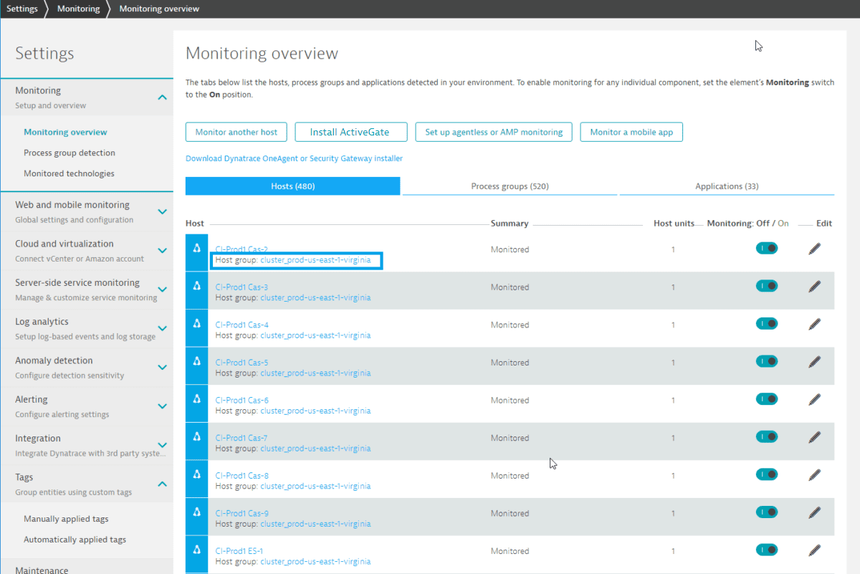
In Settings > Monitoring > Monitoring overview, select a host’s Host group link to open the group settings (anomaly detection, OneAgent updates). For the fifty test servers from the introduction: a disk rule dedicated to the test_payment host group, and the global settings stay untouched. Other levers against noise are covered in Dynatrace Managed false positives.
The trap: changing host group in production
Changing the assignment recalculates process group IDs, which affects data aggregation: the host’s process groups and services restart under new entities, and history stays attached to the old ones. Dashboards, alerts, SLOs or rules that target a specific entity ID do not follow. Before any change in production:
- list the configurations that reference the affected process groups or services;
- prefer selectors by tag or management zone, which follow the new entities;
- group changes into a maintenance window, since applications must restart.
How to check it works
- On the host:
./oneagentctl --get-host-groupreturns the expected name. - In the UI: Hosts, select the host, Properties and tags: the Host group property is shown (it is absent if the host has no group). On SaaS, host groups also appear on the Hosts page of the Infrastructure & Operations app.
- Deployment Status > OneAgents, Host group filter: the list must contain all expected hosts, and no others.
- After the applications restart, check that process groups appear split by host group if the same software runs in several groups.
Good practices
- One host group = a set of hosts sharing the same configuration (environment + role).
- A naming convention set before the first rollout, built into install scripts and the DynaKube.
- Owner, team, cost: in tags and management zones, not in the host group.
- No production host without a host group: filter Deployment Status regularly.
- Host group changes planned, with an inventory of configurations that use entity IDs.
Frequently asked questions
Can a host belong to several host groups?
No, a host belongs to at most one host group. For multiple groupings (team, application, cost), use tags and management zones.
Do I need to create the host group in the UI before assigning it?
The documentation describes assignment through the OneAgent parameter (installation, oneagentctl, remote configuration): the group appears with the hosts that declare it. No separate creation step is described.
Host group or management zone to separate test and production?
Both, for different reasons. The host group splits process groups and services and carries technical settings; the management zone filters the view, permissions and alerts. The host group can feed the management zone rule.
Conclusion
Dynatrace host groups are an architecture choice more than an installation parameter: they split process groups, carry per-group settings and feed tags and management zones. Defined early, on the “same configuration” criterion, they avoid compromise global thresholds and useless alerts; changed late, they cost history.
References: Organize your environment using host groups and OneAgent configuration via command-line interface (Managed documentation).
span.observer is an independent blog, not affiliated with Dynatrace LLC. Dynatrace and OneAgent are trademarks of Dynatrace LLC. The information comes from public documentation; check it against your version before any change in production.