




Module 5 of the SLO SLA training: writing an error budget policy, that is, agreeing in advance on what the team does when the budget melts away. Thresholds, actions such as a deployment freeze, multi-window burn rate alerts and release gates: everything that turns an SLO into a decision.
Course: SLO SLA training · Module 5/6 · Duration: ~40 min · Level: Intermediate · Platform: concepts apply everywhere; Dynatrace SaaS and Dynatrace Managed tooling flagged each time
An SLO with no consequence is just one more number on a screen. On the day the budget runs out, someone has to decide whether the new feature still ships. Without a written rule, the decision is made in a meeting, under pressure, and often ends in a clash between the product team and on-call.
This module builds on the calculations of module 2 (error budget and burn rate maths) and on the SLOs created in modules 3 and 4. Goal: by the end, you have a one-page document signed by product and operations, two burn rate alerts and a release gate wired to the same SLO.
What is an error budget policy?
It is a written agreement stating, for a given SLO, which actions each level of budget consumption triggers. The Google SRE Workbook publishes an example in its Error Budget Policy chapter. Four useful ideas stand out:
- A clear trigger: if the service has exceeded its budget over the preceding four-week window, all changes and releases stop, except P0 and security fixes, until the service is back within its SLO.
- A postmortem threshold: a single incident consuming more than 20% of the budget over four weeks requires a postmortem.
- Exceptions: budget consumed by users outside the SLO scope (load tests, penetration testers) does not trigger the freeze.
- An arbiter: if the parties disagree on the calculation, the question goes to a leadership level named in advance (the CTO in the Workbook example).
The key point is timing: the policy is negotiated in calm times, while the budget is full. On incident day, you apply it; you do not debate it. It is also blameless: the rule targets the service, not people.
Step 1 — Set thresholds and actions
Split the remaining budget into tiers. The values below are starting examples, to be adjusted with the product team:
| Remaining budget (30-day window) | State | Actions |
|---|---|---|
| > 50% | Normal | Usual release pace, experiments allowed. |
| 25 to 50% | Watch | Review the period’s incidents, release outside peak hours, progressive rollout mandatory. |
| 0 to 25% | Restricted | Only low-risk changes and reliability fixes ship; part of the team’s capacity moves to reliability. |
| Exhausted (< 0%) | Freeze | Deployment freeze except P0 and security fixes until back within the SLO; postmortem for major incidents. |
With a 99.9% SLO over 30 days, the budget is 43.2 minutes (43,200 minutes × 0.1%). The 25% tier therefore means 10.8 minutes of downtime left. Write these values in minutes in the policy: they speak louder than a percentage.
Add an exit rule: the freeze lifts when the SLI over the rolling window is back above target, not when the calendar month changes. Otherwise an incident on the 29th would be wiped out on the 1st.
Step 2 — Alert on burn rate, not on error rate
Burn rate is the ratio between the observed error rate and the error rate allowed by the SLO. The Dynatrace SaaS documentation puts it as burn rate = error rate / error budget, measured over a look-back window. A burn rate of 1 uses up the budget exactly at the end of the SLO window.
The Workbook chapter Alerting on SLOs recommends three multi-window alerts for a 99.9% SLO. Each combines a long window with a short window equal to 1/12 of the long one; the alert fires only if both exceed the threshold. Budget consumed when it fires = burn rate × long window / period.
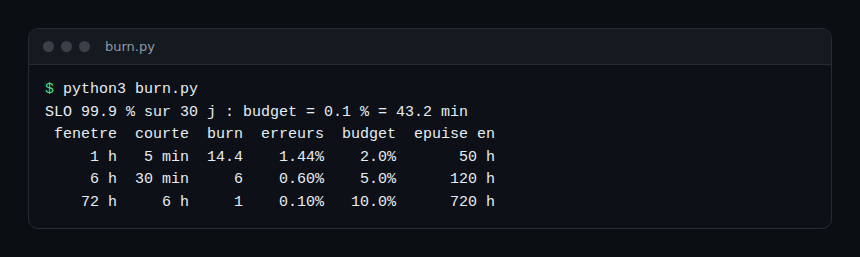
First row: 14.4 × 1 h / 720 h = 0.02, i.e. 2% of the budget in one hour. At that pace, the whole budget lasts 720 / 14.4 = 50 hours. The first two rows page on-call; the third opens a ticket.
Tie these alerts to the policy: a fast alert means “incident in progress”, a slow alert means “the next tier is coming”. Implementation details are in SLO burn rate alerts in Dynatrace.
In Dynatrace SaaS
The Service-Level Objectives documentation shows how to compute the burn rate by adding one line to the SLI’s DQL query:
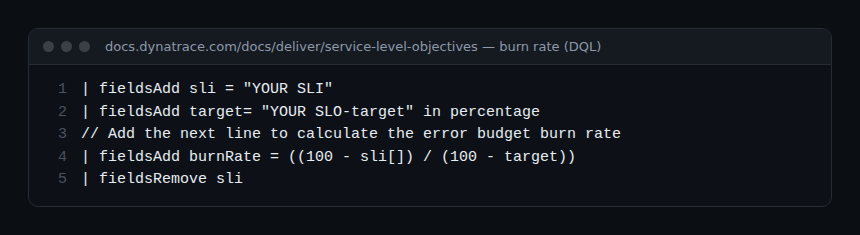
You then paste this query into Anomaly Detection to raise an event when the burn rate exceeds a static threshold. The documentation states that the supported look-back window is -1h, suited to fast-burn alerts, and suggests a starting threshold between 10 and 14. It recommends adding the event properties dt.source_entity, event.type, slo.name and dt.owner, the last one routing the alert to the right team. The resulting events can trigger a Workflow.
In Dynatrace Managed
Classic SLOs show, in the Service-level objectives list, the status, error budget and burn rate of each SLO. There is no DQL and no Grail Anomaly Detection: alerting is configured on classic SLOs, as described in Dynatrace Managed SLOs through the UI and API.
Step 3 — Wire a release gate
The policy says “freeze when the budget is exhausted”; the pipeline must know it without anyone looking at a dashboard.
- Dynatrace SaaS: Site Reliability Guardian groups objectives, each measured by a DQL indicator and compared with a warning and a failure threshold. A Workflow triggered by the deployment-finished SDLC event runs the validation, whose status is notably
pass,warningorfail. An objective “remaining budget ≥ 25%” applies the restricted tier directly. Full tutorial: Site Reliability Guardian to validate a release. - Dynatrace Managed: no Site Reliability Guardian. The pipeline reads the SLO through the API and compares the remaining budget with the threshold, as in the error budget release gate.
In both cases, missing data must close the gate: a silent SLI is never a green light.
Hands-on exercise
- Pick an existing SLO (module 3 or 4) and compute its budget in minutes over its window.
- Write the policy on one page: tiers, actions, exceptions, postmortem threshold, arbiter, review date.
- Compute the alert thresholds: burn rate 14.4 over 1 h and 6 over 6 h, budget consumed when they fire.
- On SaaS, add the
burnRateline to the SLI query in a Notebook and check the value stays close to 0 in normal operation. - Have the product owner review and sign the policy.
How to check it works
- SaaS: in Anomaly Detection, the alert preview shows the burn rate series below the threshold; temporarily lower the threshold on a test environment to see the event appear with
slo.nameanddt.owner. - SaaS: run a guardian validation and find its result in the validation list.
- Managed: the error budget column of the SLO list must match your calculation in minutes.
- Replay a past incident on paper: would the policy have triggered the right action at the right time?
Quiz
- 99.9% SLO over 30 days, burn rate 14.4 for 1 h: how much budget is consumed? a) 0.1% b) 2% c) 14.4% d) 50%
- Which short window goes with a 6 h long window? a) 5 min b) 30 min c) 1 h d) 6 h
- In the Workbook example, which incident requires a postmortem? a) Any incident b) More than 20% of the budget over four weeks c) More than 50% of the budget d) Only an SLA breach
- Is Site Reliability Guardian available on Dynatrace Managed? a) Yes b) No
Answers
- b) 14.4 × 1 / 720 = 2%.
- b) The short window is 1/12 of the long one: 6 h / 12 = 30 min.
- b) That is the threshold in the Workbook example policy.
- b) It is a Dynatrace SaaS app; on Managed, use the SLO API.
Best practices
- One policy per critical service, one page, one review date.
- Thresholds in minutes and requests, not only in percent.
- Two burn rate alerts are enough to start; add the 3-day ticket later.
- The same SLI definition for the SLO, the alert and the release gate.
Frequently asked questions
Does an error budget policy block every deployment?
No. It restricts progressively and only freezes once the budget is exceeded, with written exceptions for reliability and security fixes.
What if the budget is consumed by an external dependency?
Cover the case in the policy. The Workbook cites, for instance, a company-wide network outage as a reason not to freeze features. Record it in the postmortem and discuss a realistic SLO with the provider.
Should every SLO use a burn rate of 14.4?
No. Those values come from a 99.9% over 30 days example. For another target or window, redo the maths; the Dynatrace documentation suggests 10 to 14 as a starting point over a one-hour window.
Your SLO now has written consequences, alerts and a gate. The last module moves from internal to external: turning an SLO into a contractual commitment.
← Module 4: create an SLO in Managed · Course overview · Module 6: write an SLA →
span.observer is an independent community blog, not affiliated with Dynatrace LLC. This course does not replace official Dynatrace University training. Policy thresholds are examples; check Dynatrace features against the official documentation for your version.