


Connecting ONLYOFFICE local AI to your own model promises document summaries and translations without a single byte leaving the network. For the operations team, it mostly means a new critical path: a web editor, a server-side relay and an inference engine on a GPU. When a user clicks “Summarise” and nothing happens, you need to know which of the three links failed.
This article describes the architecture of ONLYOFFICE Docs 10.0 (the documented version at the time of writing) connected to Ollama or vLLM, the server parameters that matter, then end-to-end monitoring. Every parameter quoted comes from the ONLYOFFICE, vLLM and Ollama documentation. On the Dynatrace side, the method applies to Dynatrace SaaS and Dynatrace Managed alike: only the OTLP address changes.
If you are new to local models, start with installing and monitoring Ollama or vLLM in production; here we assume the engine is already running.
Architecture: ONLYOFFICE local AI in three links
ONLYOFFICE AI features live in a plugin, called AI Tools in the 10.0 changelog. The plugin runs in the editor, so in the user’s browser. It can reach the model in two ways:
- directly from the browser: the request goes from the workstation to Ollama. This is why the documentation asks you to set
OLLAMA_ORIGINS(CORS headers); - through the Docs server
/ai-proxyrelay: the server configuration reference describes this entry point, its timeout (aiSettings.timeout) and the fact that outgoing requests go throughexternalRequestfiltering.
The choice changes everything for monitoring. In direct mode, the Docs server sees nothing and every workstation must reach the engine. Through the relay, the Docs server becomes a single choke point: errors show up there, filtering applies there, and the engine only needs to be reachable from the server.
Ollama and vLLM do not plug in the same way. Ollama is in the plugin’s provider list: you enter a base URL (http://localhost:11434 in the official guide) instead of an API key. vLLM exposes an OpenAI-compatible API under /v1; the ONLYOFFICE documentation does not mention vLLM, but it describes adding a custom provider through a JavaScript file that extends AI.Provider with a URL, an optional key and a suffix such as v1. That is the route to test for vLLM.
Server parameters you need to know
ONLYOFFICE Docs reads its configuration with node-config from /etc/onlyoffice/documentserver/ on Linux. Do not edit default.json: put your values in local.json, which overrides it. Four blocks concern AI and its monitoring.
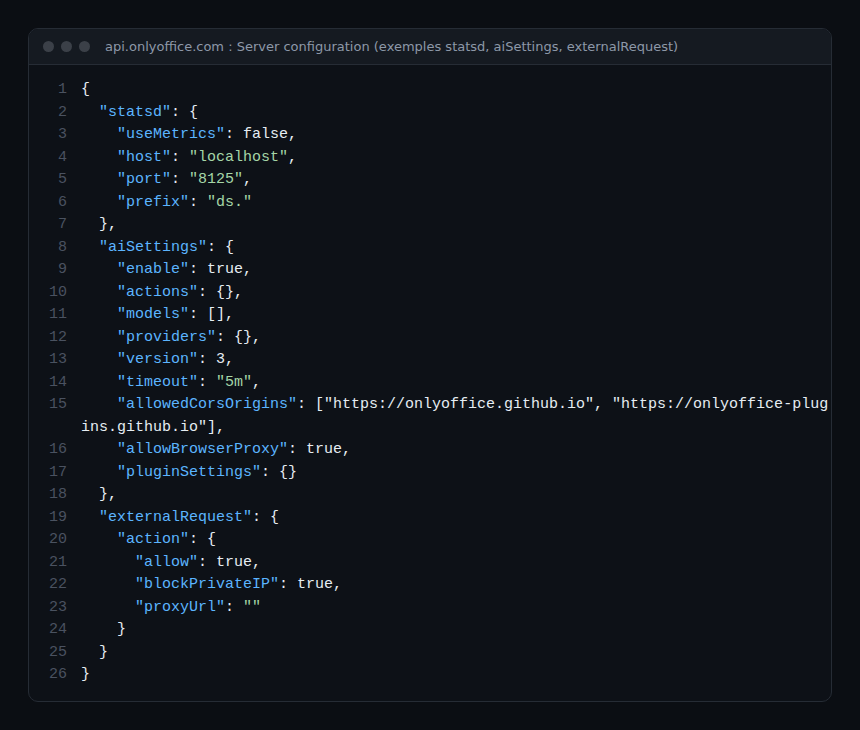
aiSettings.enable(trueby default): set tofalse, the plugin is removed from/plugins.jsonand/ai-proxyrequests get HTTP 403. This is your kill switch.aiSettings.timeout("5m"): relay timeout. A slow CPU-only model can hit it.aiSettings.allowBrowserProxy(true): the relay also forwards a request whose target matches no configured provider, for example an MCP server declared in the browser. The server adds no credentials, requires a valid session token and only accepts absolute http or https targets. Set tofalse, such requests get a 403.externalRequest.action.blockPrivateIP(true): private IP addresses are blocked. An engine on10.xor192.168.xmay therefore be refused by the relay. Relaxing it is a security decision, to be taken with the network team.statsd.useMetrics(false),statsd.host,statsd.port("8125"),statsd.prefix("ds."): metrics export from the Docs server.
The integration parameter editorConfig.customization.ai.disabled, added in 10.0, disables AI for a given document session. Model keys and settings can also be entered on the server /info page since version 9.0.
In practice: connect and verify
Step 1 — Open Ollama to the editor
If the plugin calls Ollama from the browser, Ollama must return the right CORS headers. The ONLYOFFICE documentation gives the systemd procedure and the verification command:
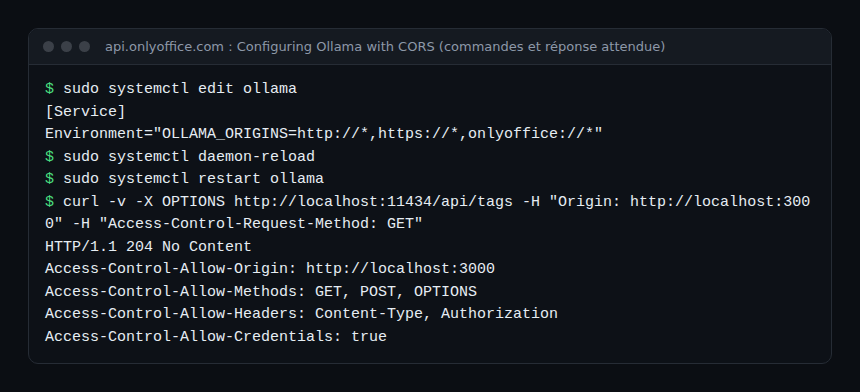
The http://* and https://* wildcards suit a test workstation, not a shared server: the same page recommends listing explicit origins in production. By default Ollama only listens on localhost; opening it to the network (OLLAMA_HOST=0.0.0.0) requires, according to the documentation, a reverse proxy with TLS and authentication.
Step 2 — Start vLLM with a key
vllm serve NousResearch/Meta-Llama-3-8B-Instruct \
  --dtype auto \
  --api-key token-abc123

curl http://localhost:8000/v1/models -H "Authorization: Bearer token-abc123"
vLLM listens on http://localhost:8000 by default. Beware: the documentation states that --api-key (or VLLM_API_KEY) only protects the /v1, /v2 and /inference paths; /invocations stays open. Put vLLM behind a reverse proxy and never expose the port directly to workstations.
Step 3 — Restrict and tune the relay
{
  "aiSettings": {
    "timeout": "2m",
    "allowBrowserProxy": false
  },
  "statsd": {
    "useMetrics": true,
    "host": "localhost",
    "port": "8125",
    "prefix": "ds."
  }
}
This local.json shortens the timeout (failing fast beats a user waiting five minutes), stops relaying to undeclared targets and enables StatsD. Disabling allowBrowserProxy also disables targets configured in the browser, such as an MCP server: check nobody relies on them. Restart the Docs services after the change.
Step 4 — Check each link
# Docs server: databases, broker, Redis and storage (expected response: true)
curl -s https://docs.example.com/healthcheck

# Ollama: available models
curl -s http://localhost:11434/api/tags

# vLLM: Prometheus metrics
curl -s http://localhost:8000/metrics | grep vllm:time_to_first_token_seconds
According to the documentation, /healthcheck checks the databases, message broker, Redis and storage; it does not test the AI engine. You therefore need a probe dedicated to the engine.
Monitoring the chain with OpenTelemetry and Dynatrace
A single OpenTelemetry Collector can gather both sources: the contrib statsd receiver (beta stability, listens on localhost:8125 over UDP by default) for ONLYOFFICE, and the prometheus receiver for vLLM. Components and export format are covered in the Collector contrib components.
receivers:
  statsd:
    endpoint: localhost:8125
  prometheus:
    config:
      scrape_configs:
        - job_name: vllm
          static_configs:
            - targets: ["localhost:8000"]
exporters:
  otlphttp:
    endpoint: https://<env-id>.live.dynatrace.com/api/v2/otlp   # SaaS
    # Managed: https://<your-domain>/e/<env-id>/api/v2/otlp
    headers:
      Authorization: "Api-Token ${env:DT_API_TOKEN}"
service:
  pipelines:
    metrics:
      receivers: [statsd, prometheus]
      exporters: [otlphttp]
The token needs the metrics.ingest scope. On the vLLM side, three metrics are enough for a first dashboard: vllm:time_to_first_token_seconds, vllm:e2e_request_latency_seconds and vllm:num_requests_waiting. The diagram from the vLLM design documentation shows what each one measures:
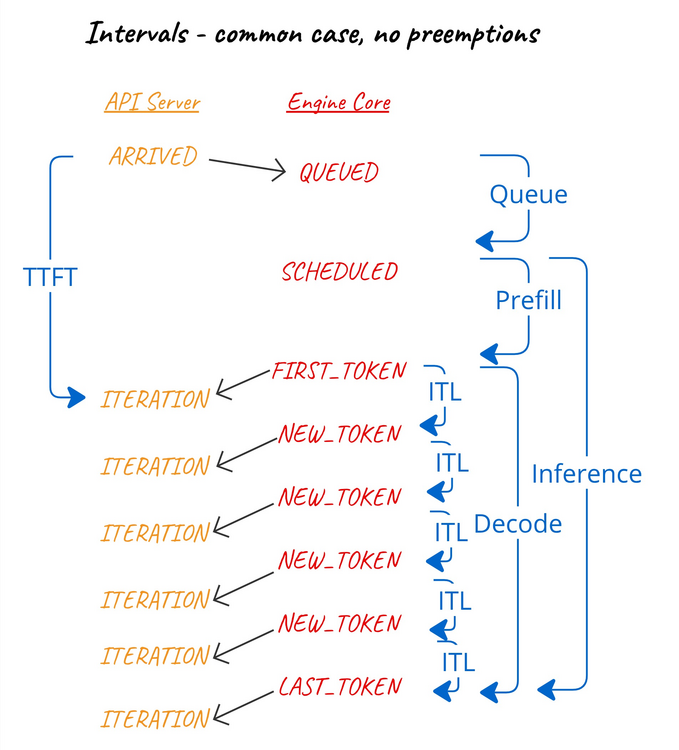
TTFT is what the user feels in the editor: the delay before text starts appearing. A growing queue (num_requests_waiting) with rising TTFT points to a saturated GPU, not an ONLYOFFICE outage. For Ollama, which does not expose these histograms, a synthetic probe on /api/generate returns total_duration, eval_count and eval_duration, in nanoseconds.
An SLO the support desk can read
Phrase the objective from the user’s point of view: “95% of summary requests produce a first word in under 3 seconds over 28 days”. The threshold is an example to calibrate on your hardware. vLLM TTFT is the SLI; the /ai-proxy 403 and /healthcheck support diagnosis. With these three signals, on-call knows within a minute whether the problem is the network, the Docs server or the engine, which cuts MTTR.
Best practices
- Prefer the
/ai-proxyrelay to direct access: one network path, one filtering point. - Keep
blockPrivateIPon until a network review justifies an exception. - Lower
aiSettings.timeoutto fail fast rather than freeze the editor. - Do not rely on
--api-keyalone for vLLM: a reverse proxy is mandatory. - Document the
aiSettings.enablekill switch in the incident runbook. - Monitor the engine separately:
/healthcheckdoes not cover it.
Frequently asked questions
Does ONLYOFFICE local AI work in the web version?
The current page on the plugin agent treats Ollama and LM Studio as local providers entered by URL, without separating desktop and web. An older guide limited Ollama to the Desktop Editors: test on your version before announcing it to users.
Can vLLM be connected without a custom provider?
The ONLYOFFICE documentation does not mention vLLM. The custom provider (a JavaScript file extending AI.Provider) is the documented route for an OpenAI-compatible API.
Does the Docs server emit traces?
The configuration documents a StatsD export, not OpenTelemetry traces. End-to-end traces have to be built on the engine side or with a synthetic probe.
Conclusion
Local AI in ONLYOFFICE keeps documents in-house, but adds an inference engine to the office suite’s critical path. Choose the server relay, keep the default filters, shorten the timeout and track TTFT as the main indicator. To place this component in the bigger picture, see the self-hosted open source AI stack and, for MCP targets of the relay, securing an MCP server. References: ONLYOFFICE Docs server configuration and configuring Ollama with CORS.
span.observer is an independent community blog, not affiliated with Dynatrace LLC or the projects mentioned. Trademarks belong to their owners. Tools evolve quickly: check commands and options in their official documentation.