




Module 2 of the Monaco SaaS course: the Monaco SaaS installation, from downloading the CLI to a manifest that authenticates with a platform token or an OAuth client.
Course: Monaco SaaS · Module 2 · Duration: ~40 min · Level: Beginner
Objectives:
- Install and check the Monaco CLI
- Write a manifest with its three top-level keys
- Choose between a platform token and an OAuth client
- Supply secrets through environment variables, never in the repository
Prerequisites: module 1, a Dynatrace SaaS test environment and a terminal.
A configuration-as-code tool is only as good as its starting point. The Monaco SaaS installation takes three steps: put the binary on the workstation or in the CI image, describe the target environment in a manifest, then supply credentials through environment variables. This module covers Dynatrace SaaS only. The Managed course has its own modules for a Managed cluster.
For SRE teams the point is practical: a versioned manifest and secrets kept out of the repository cut the toil of manual deployments and make every change reviewable, so easier to roll back during an incident.
Monaco SaaS installation: installing the CLI
The official documentation offers three routes: download the binary, use the container image, then run the monaco command. Binaries exist for Linux (amd64, arm64, 386), macOS and Windows (amd64, 386). On Linux amd64 the documentation gives this sequence: download, optional checksum verification, rename, make executable, copy into the PATH.
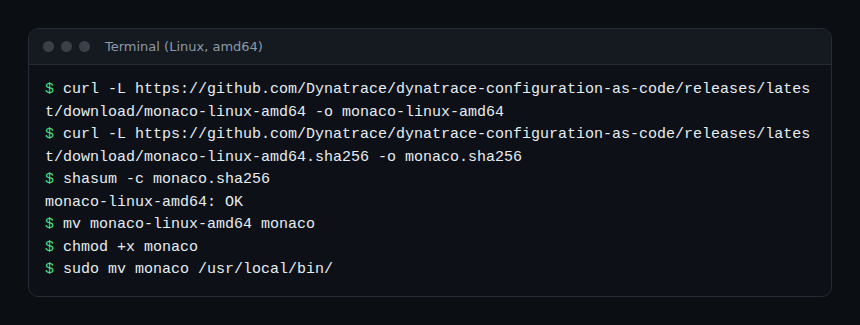
The documentation marks the checksum as optional, but it costs a second: keep it in your install scripts. On Windows the documentation uses Invoke-WebRequest in PowerShell to fetch monaco.exe.
To check the installation, run monaco version: the “version” subcommand prints the CLI version. Run with no argument, monaco lists the available commands, including deploy, download, delete, generate and account.
Versions matter: according to the documentation, platform token support in the manifest requires Monaco 2.24.0 or later. Record the version in your procedure.
The manifest: three top-level keys
The manifest describes what to deploy and where. It has three top-level keys: manifestVersion, projects and environmentGroups. The manifest version currently supported is 1.0.
projects: the list of projects. Each entry has aname(no slash) and, optionally, apath; without apath, the name is used as the path. A project of typegroupingloads every subfolder as a simple project.environmentGroups: groups of environments, for example “dev” and “prod”. Applying a configuration to a group applies it to all its environments.- Each environment has a unique internal
name, aurland anauthsection.
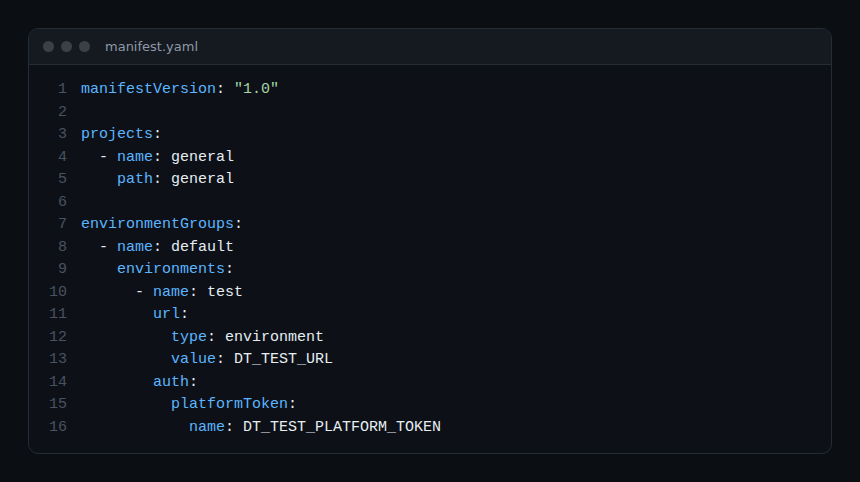
In the example, url uses type: environment: the value DT_TEST_URL is the name of an environment variable holding the URL. The documentation also allows typing it directly with type: value. The names DT_TEST_URL and DT_TEST_PLATFORM_TOKEN are examples chosen for this course.
SaaS URL: the platform address
The URL expected for the platform APIs looks like https://<environment-id>.apps.dynatrace.com. Monaco’s code rejects a “classic” URL when authenticating with an OAuth client or a platform token, and its error message says so. Monaco derives the classic address itself by replacing .apps. with .live., then checks that it answers. If that test fails, it queries the platform metadata API.
In practice: never enter the .live.dynatrace.com URL in the manifest. Always use the .apps. URL.
Authentication: access token, platform token or OAuth
The auth section accepts three methods, and the documentation sets one rule: Monaco does not allow secrets to be written in the manifest. The name field holds the name of the environment variable that carries the secret, never the secret itself.
| Method | Manifest keys | Used for |
|---|---|---|
| Access token | token → name |
Configuration and Settings APIs (v1 and v2 permissions) |
| Platform token | platformToken → name |
Platform APIs (workflows, documents, Grail buckets…), since Monaco 2.24.0 |
| OAuth client | oAuth → clientId and clientSecret → name |
Same platform APIs |
Combination rules: you can pair token with platformToken or with oAuth for one environment, but not platformToken and oAuth together. Access tokens and platform tokens are not interchangeable.
Minimum scopes
For a platform token or an OAuth client, the documentation recommends at least app-engine:apps:run (platform metadata), settings:objects:read, settings:objects:write and settings:schemas:read. More scopes are added depending on the resources managed: automation:workflows:read and write, document:documents:*, storage:bucket-definitions:*, slo:slos:read and write, among others. Apply least privilege: grant only what your projects deploy.
For an access token, the documentation lists at least DataExport, ReadConfig, WriteConfig, settings.read and settings.write.
Which one to choose?
The platform token is the simplest to set up: one secret. The OAuth client goes through Account Management (Identity & access management, then OAuth clients); the secret is shown only at creation, and the IAM policies of the service user’s groups can restrict rights further. Note also that the platform token requires a recent CLI version. The module on OAuth and secrets goes deeper into secret handling in CI.
Hands-on exercise
Run this exercise on a SaaS test environment (a free trial works). No command was executed while writing: the exact output depends on your version.
Step 1 — Install and check
Follow the download sequence above for your system, then run monaco version. Expected result: the command prints the CLI version. Note it down.
Step 2 — Create the token or client
Create a platform token (or an OAuth client) with the four minimum scopes listed above. Keep the secret in a password manager, not in a file of the repository.
Step 3 — Export the variables
export DT_TEST_URL="https://<environment-id>.apps.dynatrace.com"
export DT_TEST_PLATFORM_TOKEN="<platform token>"
Step 4 — Write the manifest
Create manifest.yaml as in the screenshot, plus a general folder for the project. The folder can stay empty for now; configurations arrive in module 4.
Step 5 — Validate
Run monaco deploy manifest.yaml --dry-run. The flag’s documentation says it validates the structure of the manifest, projects and configurations, but not the content of JSON payloads. Not verified: whether this mode contacts the environment to test credentials. An authentication error usually points to a .live. URL, a missing variable or a missing scope.
Quiz
- What are the three top-level keys of a manifest? (a)
name,url,auth; (b)manifestVersion,projects,environmentGroups; (c)token,oAuth,platformToken. - What does the
namefield underplatformTokenhold? (a) the token; (b) the name of the environment variable holding the token; (c) the project name. - Which combination is forbidden for one environment? (a)
tokenandoAuth; (b)tokenandplatformToken; (c)platformTokenandoAuth. - Which URL form must be entered for the platform APIs? (a)
…live.dynatrace.com; (b)…apps.dynatrace.com; (c) the server IP address.
Answers
- (b): the manifest consists of the version, the projects and the environment groups.
- (b): Monaco always loads secrets from the environment, never from the file.
- (c): an access token can accompany either one, but not both platform methods at once.
- (b): Monaco derives the classic address itself from the platform URL.
Going further
- Dynatrace Monaco: configuration as code, step by step
- Monaco or Terraform for Dynatrace configuration
- Dynatrace SaaS API schemas
- Official documentation: Monaco resources
- Dynatrace Configuration as Code repository (Apache 2.0)
← Module 1: configuration as code SaaS · Course overview · Module 3: Monaco SaaS export →
Frequently asked questions
Do you need an access token as well as the platform token?
Only if your projects use classic configuration APIs. Both are declared side by side in auth, each with its own variable.
Can the token go straight into the manifest?
No. The documentation states that Monaco always loads authentication details from environment variables.
Does Monaco run in a container?
The official documentation provides a container image; see its download page for the exact reference.
You now have a verified CLI and a manifest that authenticates through environment variables. The next module builds on this to export an existing configuration.
span.observer is an independent community blog, not affiliated with Dynatrace LLC. This course does not replace the official Dynatrace University training and certifications. Check features in the official documentation for your version.