


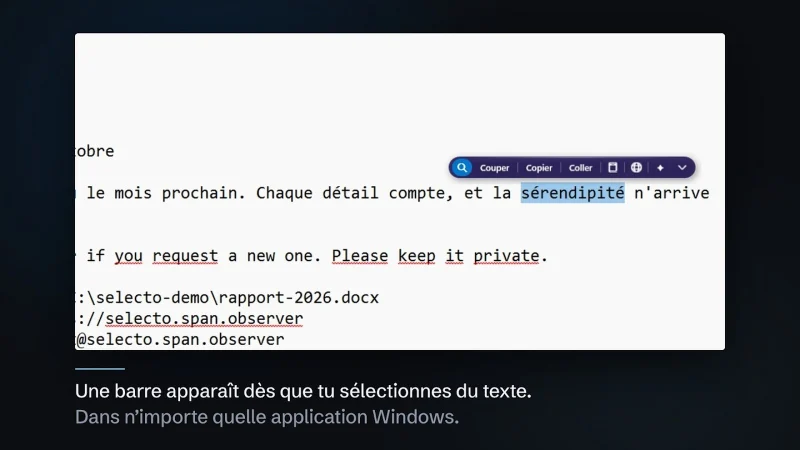
You are reading a message in another language, one sentence loses you, and you open a tab to paste it into a translator. Looking to translate selected text Windows AI tools can handle in place? There is a more direct way: Selecto AI, a floating bar that appears above your selection in any application. One thing up front: this is an app developed by us, and free. We present it with enthusiasm, but promise nothing beyond what it does.
The idea is simple. The gestures you repeat all day (look up a word, translate, fix a typo, summarise a paragraph) should happen where the text is. Not in another window, and not in a chatbot that asks you to retype everything.
This article follows a concrete path: the need, the bar, the AI actions, the choice of engine, installation (with the SmartScreen warning explained plainly), then what leaves your PC and what does not. Everything comes from the public repository and version 4.0.0.
Translate selected text Windows AI: the starting need
The need comes from everyday work: we write, read and translate all day, in a browser, a word processor, a mail client. Every round trip to an outside tool breaks the thread of your reading.
Selecto AI answers with three principles. First, the bar appears next to the selection and never takes focus, so your cursor stays in the document. Second, it works in any application. Third, it needs no account or subscription, and its AI can run on your own PC.
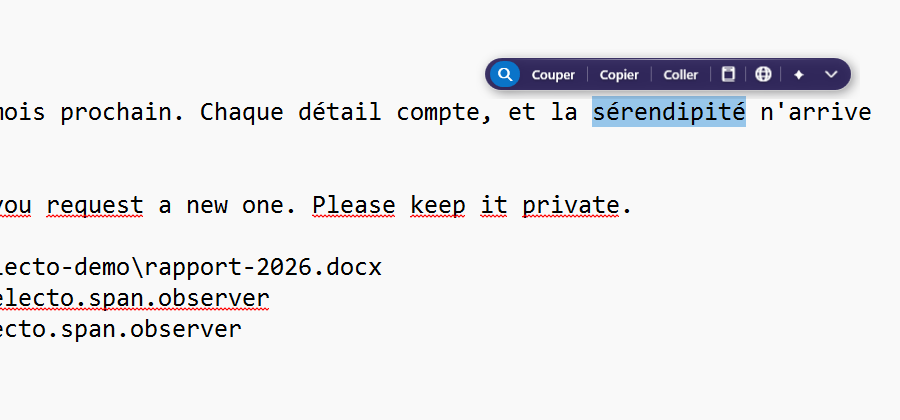
In the screenshot, the bar floats above the selected word. You can see the search magnifier, Cut, Copy, Paste, then icons for translation and AI, and an arrow that unfolds further actions.
The floating bar in daily use
The repository lists the built-in actions: search, open a link, show in Explorer, write to an e-mail address, spell check, cut, copy, paste, dictionary and translate. The bar offers those that make sense for the current selection.
A few practical points:
- After a keyboard selection (Ctrl+A, Shift+arrows), the
Ctrl+Shift+Spaceshortcut shows the bar. You can change it in the settings. - Results that are not pasted into the document appear in a small popup, from which you can copy them.
- The bar comes in a light or dark style, its size ranges from 80 to 140 %, and it sits above or below the text.
- You can exclude applications or sites.
There is also a calculator for selected expressions, convert and code actions, and JavaScript extensions. The repository holds a library of 22 extensions (35 actions). For example, “Slug” turns “Café & Crème : l’été 2026!” into cafe-creme-l-ete-2026.
Summarise, explain, rephrase and fix with AI
The AI menu adds four actions: summarise, explain, rephrase and fix. On a badly typed sentence, one click on “Fix” is enough. On a long paragraph, “Summarise” gives you the gist without leaving the page.
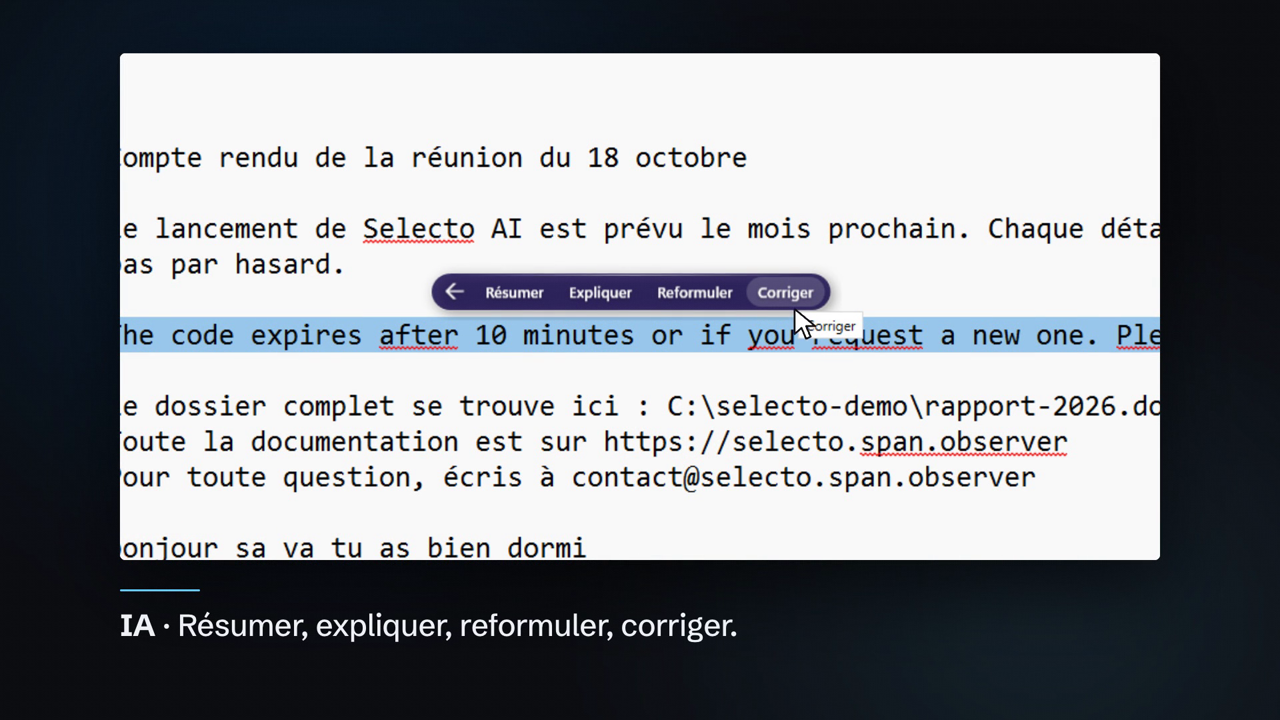
This image comes from our demo video: the menu appears just above the selected line. Keep one habit whatever the engine: a model can be wrong, so read the result before replacing or sending anything.
The AI engine: local with Ollama, or your own keys
By default no AI is configured. That is deliberate: nothing leaves until you decide. In the settings, on the “AI” page, there are three routes:
- Local AI: the app installs the Ollama engine and the model you pick, from its settings, without a terminal. The selected text does not leave your PC.
- Online service with your key: OpenAI, Anthropic, Google Gemini, Mistral, Groq, DeepSeek, xAI, Together AI or OpenRouter. Each key is stored encrypted with Windows DPAPI, never in clear text.
- Custom endpoint: any OpenAI-compatible service (base URL, model, key).
To understand what runs behind the local AI, read our article on Ollama and monitoring a local LLM. To pick a model, see how to choose an LLM for operations. A small local model is enough to fix or rephrase; a long summary will need more memory.
Installing Selecto AI, step by step
Selecto AI runs on Windows 10 or 11, x64 or ARM64. The app is self-contained: there is no prerequisite to install.
- Open the latest release on GitHub.
- Download
SelectoAI-Setup-x64-4.0.0.exe(Intel or AMD PCs) orSelectoAI-Setup-arm64-4.0.0.exe(ARM PCs). The portable ZIP archives work without installing. - Check the SHA-256 hash (see below), then run the installer. For a silent deployment, the
/VERYSILENTswitch exists. - On first start, a welcome window walks you through the first settings. The icon stays in the notification area.
- Select text in any application: the bar appears.
Prefer the Store? The same app is on the Microsoft Store, signed by the Store and updated by it.
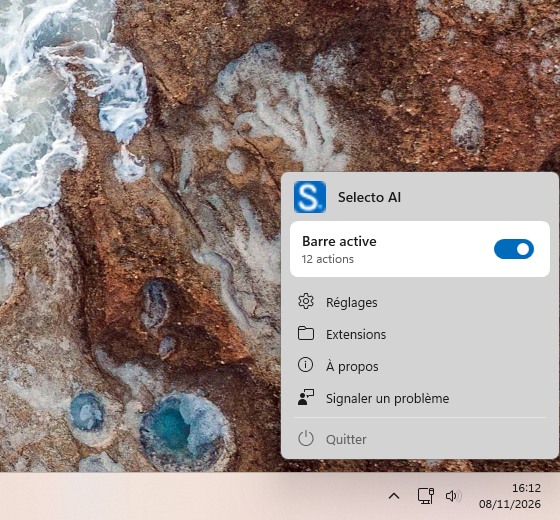
The screenshot shows the notification area menu: the “Bar active” switch pauses the bar, and the entries open the settings, the extensions folder, the About page and the problem report. The interface is shown in French here.
The SmartScreen warning, explained honestly
The installers published on GitHub are not code-signed: a signing certificate is not available for this project. Windows SmartScreen may therefore show “Windows protected your PC” and an “unknown publisher”. That is expected for an unsigned download. It is not proof of anything malicious, but it is not a guarantee either: checking the file is up to you.
- Choose “More info”, then “Run anyway”.
- Compare the file’s hash with
SHA256SUMS.txt, attached to the release.
Get-FileHash .\SelectoAI-Setup-x64-4.0.0.exe -Algorithm SHA256If the two values differ, do not run the file. And if the warning bothers you, the Microsoft Store version is signed by the Store and does not show it.
Privacy and limits
Selecto AI has no account and no telemetry. Selected text stays on your PC until you trigger an action that needs the network. Here is what the repository says, action by action:
- Translate: the text is sent to MyMemory. This is the point to remember: translation goes through a third-party service, even if your AI is local.
- Dictionary and Explain: the word is sent to Wiktionary, dictionaryapi.dev or Wikipedia.
- AI actions with an online service: the text (up to 4,000 characters) goes to the provider you chose, with your key. With local AI it never leaves the machine.
- Currency calculations: rates come from the European Central Bank.
- Updates (edition downloaded from the website):
latest.jsonis fetched 30 seconds after startup, then every 24 hours.
Online actions (translate, dictionary) can be turned off in Settings, AI. For confidential text, turn them off and use local AI. The same logic applies to any tool that reads your text: see our guardrails for AI agents in production.
As for limits: the installer is not signed, the Arabic interface translation was still “under review” in the release notes, and a small local model remains weaker than a large online one. We say so rather than hide it.
Watch the demo
The video lasts about a minute. Our first article, written for version 3.0, also details the bar: Selecto AI Windows and its action bar.
Best practices
- Check the installer’s SHA-256 before running it.
- For sensitive text: local AI, with online actions turned off.
- Read any text a model produced before you send it.
- Add the applications where the bar gets in the way to the exclusion list.
Frequently asked questions
Is Selecto AI really free?
Yes. Since version 4.0.0 every feature is available with no trial, no key and no account, under the MIT licence. Only an online AI provider’s key remains your own cost, if you use one.
Does my text stay on my PC when I translate?
No, not for the “Translate” action: it sends the text to MyMemory. To keep a text local, turn off online actions and use the AI actions with Ollama on your PC.
Why does Windows show a warning during installation?
Because the GitHub installer is not signed. Check its SHA-256, or install the Microsoft Store version, signed by the Store.
Conclusion
Selecto AI brings the action to the text: you select, translate, fix or summarise, and you choose where your data goes. The app is developed by us, free and open source. Download it from GitHub or visit the project website, and tell us what is missing.
Support us
Selecto AI is developed by our team and stays free. If it is useful to you, two simple gestures help it get known: leave a star on GitHub (one click with your GitHub account) and share it with someone who needs it, a colleague, a friend or a community. Every star and every share makes the project more visible, and keeps us motivated to carry on.
Promotional content: Selecto AI is developed by the team behind this blog. span.observer is an independent community blog, not affiliated with Dynatrace LLC. Trademarks mentioned belong to their owners. Check features and terms on the official repository.