



Promotional content: Selecto AI is published by the author of this blog. I am presenting my own software here, Selecto AI Windows, with enthusiasm but without promising anything beyond what it does.
Selecto AI Windows is an action bar that appears as soon as you select text, in any Windows application. An unknown word, a sentence in English, a typo: instead of opening a tab or a chatbot, you act on the spot, right where the text is.
This blog covers observability and self-hosted AI. Selecto AI connects through one point: local AI. The software relies on Ollama, which the blog has already described, so the selected text never leaves the PC. This article explains what the bar does, how to install it and what to know about privacy.
Selecto AI Windows: how the action bar works
The principle fits in one sentence: select, then act. As soon as text is selected, a small floating bar appears near the selection. It works in any Windows application, from a notepad to a browser or a document editor.
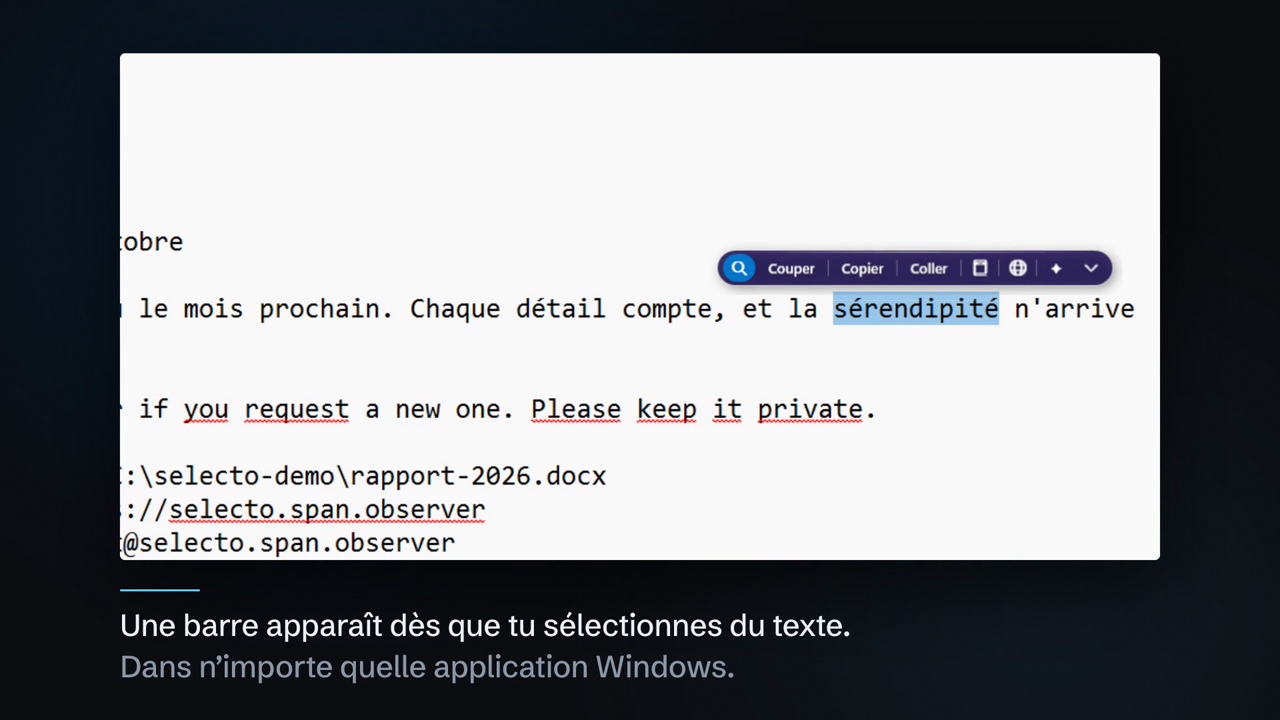
In the screenshot, the bar offers a magnifying glass to search, then Cut, Copy and Paste. The next icons open other actions: translation, AI and a menu to show more. Everything happens without leaving the application where you are writing.
The available actions
The bar groups everyday gestures, with no prior setup:
- Search for the selected text;
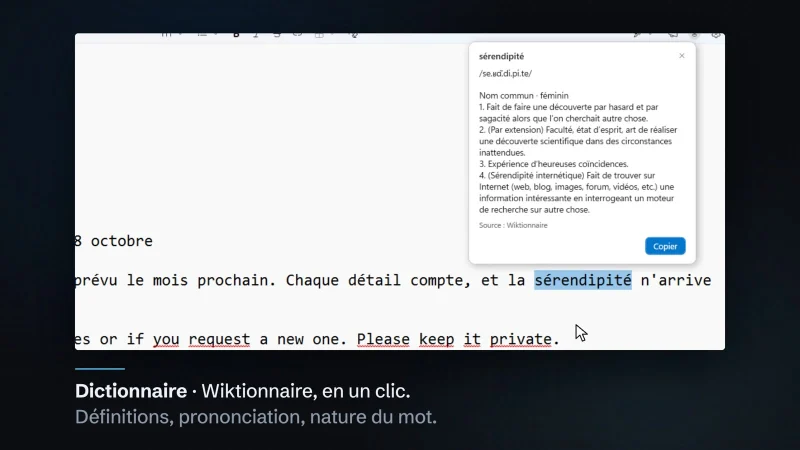
- Define a word: the demo shows a dictionary card with pronunciation and word type, sourced from Wiktionary;
- Translate: the language is detected, then you can replace the text or copy the translation;
- Cut, Copy, Paste, for the basics;
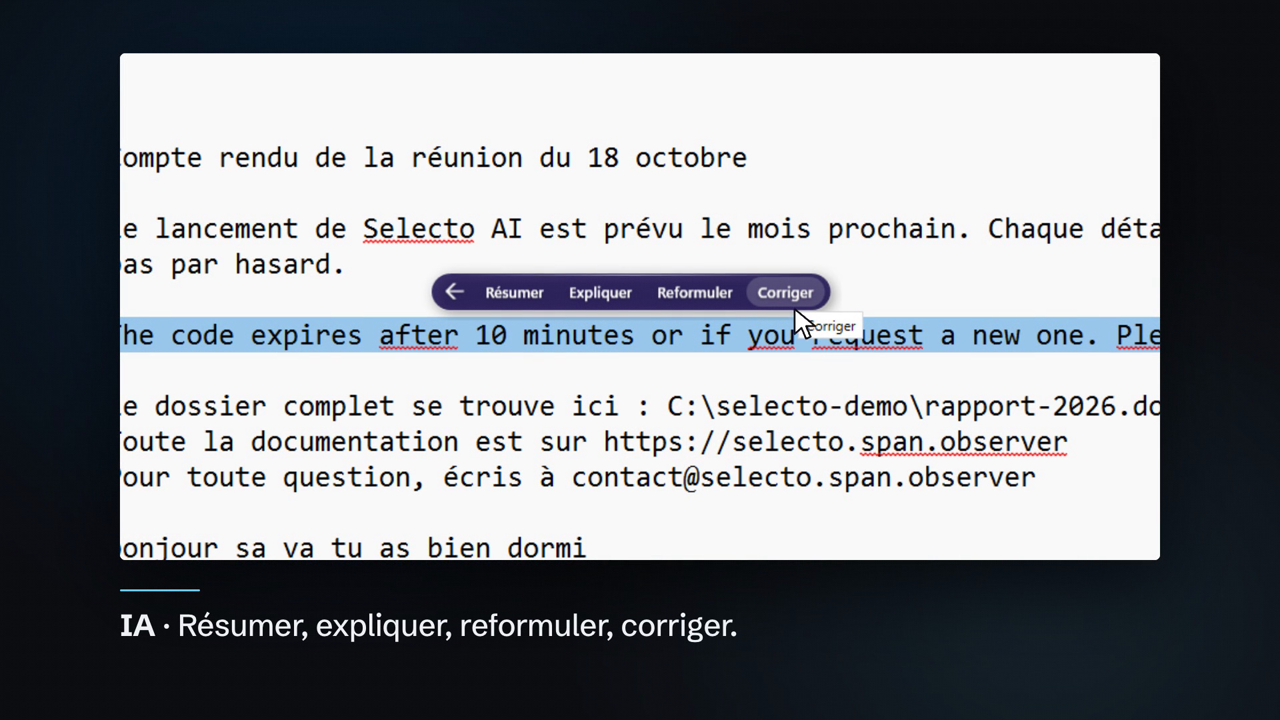
- AI: Summarise, Explain, Rephrase, Correct;
- Custom actions, written in JavaScript.
The detail that changes daily use is the “Replace” button. You select a faulty sentence, choose Correct, then one click swaps the original text for the corrected version. No copy and paste between two windows.
Summarise, explain, rephrase and correct with AI
The AI menu adds four actions on the selected text: Summarise, Explain, Rephrase and Correct. In the demo, a badly typed sentence (“bonjour sa va tu as bien dormi”) is corrected, then replaced in the document with one click.
The answer appears in a small window next to the text, with Replace and Copy buttons. It also states that the answer was generated by a model and should be checked. Keep that reflex: a small local model is still a model, and it can be wrong.
Which AI level should you choose?
On first launch, a welcome screen asks “Quel niveau d’IA ?” (which AI level?). It offers three choices:
- None: no AI for now, the bar works without it;
- Free local AI (Ollama, recommended): free and private, the text does not leave the PC;
- My provider (API key): OpenAI, Claude (Anthropic), Gemini or Mistral, with your own key.
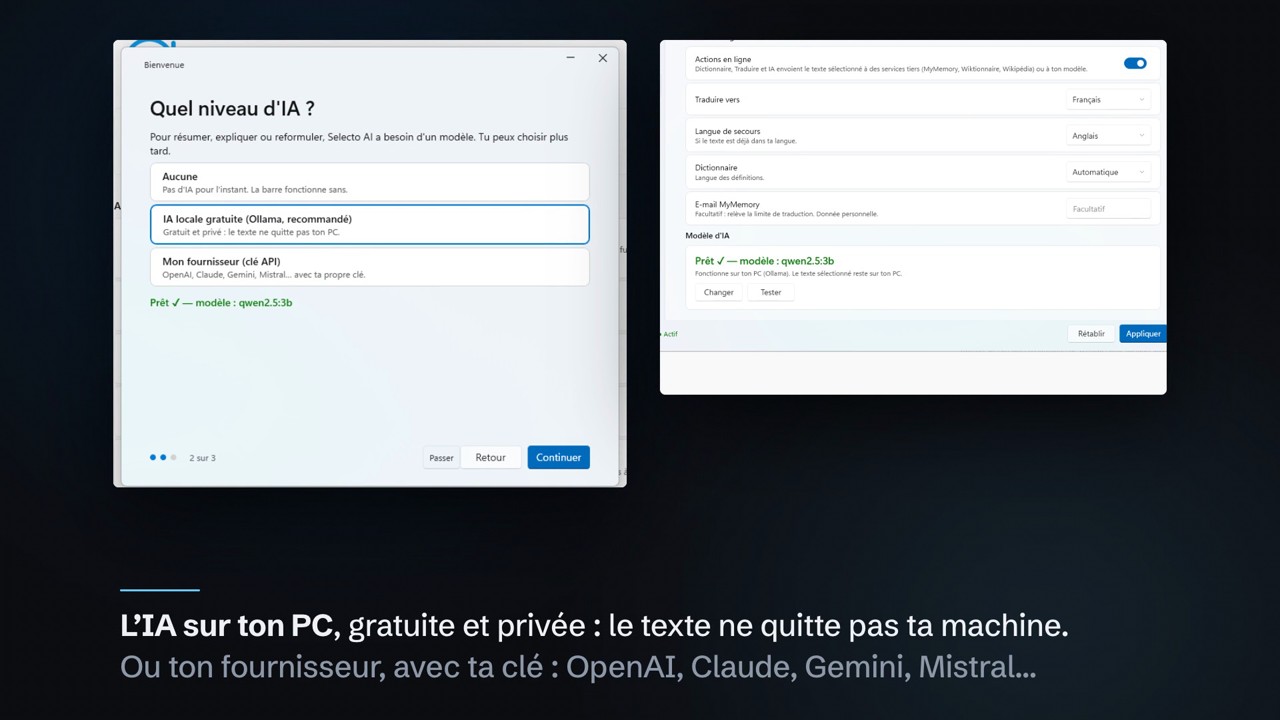
On screen, the local AI choice shows “Prêt, modèle : qwen2.5:3b” (ready, model: qwen2.5:3b). Ollama and the model are installed in one click from the application. You can also skip this step and choose later.
If you want to understand what runs behind it, our article on Ollama and monitoring a local LLM covers the engine. For a similar approach in an office suite, see ONLYOFFICE with local AI.
Privacy: what stays on the PC and what leaves it
With local AI, the selected text stays on your machine: this is the recommended choice for sensitive text. With your own provider, the text goes to the service you chose, under your terms with them.
One point of transparency: Selecto AI’s settings include an “online actions” switch. Its description says that Dictionary, Translate and AI send the selected text to third-party services (MyMemory, Wiktionary, Wikipedia) or to your model. Depending on the action, text can therefore leave the PC. Read that setting before using it on confidential data.
The same reasoning applies to agents: a tool that reads your text is an entry point to control. Our articles on guardrails for AI agents in production and on SRE lessons from consumer MCP give the framework.
Installing Selecto AI, step by step
- Install Selecto AI from the Microsoft Store.
- Launch the application: the “which AI level?” screen appears.
- Choose None, free local AI or My provider.
- Select text in any application: the bar appears.
Selecto AI is free and open source: the code is public under the MIT licence, with no account or key, on GitHub. The software is designed and developed solo, in France; the version described here is 3.0.0. Documentation is on the Selecto AI website.
Best practices
- Always reread a text corrected or summarised by AI before replacing it.
- For sensitive text, choose local AI and check the “online actions” setting.
- Start with the “None” level if you only want the bar: search, define, translate.
- Use a custom JavaScript action for a gesture you repeat often.
Frequently asked questions
Does Selecto AI work in every Windows application?
The action bar appears as soon as you select text in any Windows application, according to the software’s description.
Does my text leave my PC when I use the AI?
With local AI through Ollama, no: the text stays on the machine. With your own API key, it is sent to the provider you chose. Online actions such as Dictionary and Translate use third-party services.
Is Selecto AI free?
Yes: the application is free and open source (MIT licence), with no account or key. Local AI through Ollama is free. A provider API key remains at your own expense.
Conclusion
Selecto AI Windows brings the action closer to the text: you select, the bar appears, and you correct, translate or summarise. For readers of this blog, the appeal also lies in the local AI option with Ollama, which keeps the text on the PC. Try it and judge for yourself.
Promotional content: Selecto AI is published by the author of this blog. span.observer is an independent community blog, not affiliated with Dynatrace LLC. Trademarks belong to their owners. Check features and terms on the software’s official website.