
Skill Recorder agent skill: the microsoft/skill-recorder repository is a desktop app that records a work session, then turns it into a skill (a SKILL.md file) or an automation that an AI agent can replay. The repository shows about 5,300 stars on 27 October 2026 and carries the MIT licence.
The idea is appealing: do a task once and the agent repeats it. But the recording sees everything on your screen. For an operations team, the real questions are what gets captured, what goes to the cloud, and how to review the generated skill before letting it act.
This article follows the README, the INSTALL.md and LICENSE files and the releases page of the repository, all read on 27 October 2026. span.observer has not installed the app: the commands come from the README, and the screenshots reuse images from the repository or an excerpt of its README.
Skill Recorder agent skill: what the repository says
- Publisher and licence: the repository sits under the GitHub organisation “microsoft”, with a LICENSE file containing the MIT text. span.observer is an independent blog with no link to that publisher.
- Figures read on 27 October 2026: about 5,300 stars, 592 forks, 164 commits on the main branch, 21 open issues and 26 pull requests.
- Versions: the releases page lists v0.7.0 as the latest, published on 21 September (no year is displayed). The series starts at v0.3.0 in late July, so the project is a few months old.
- Platforms: macOS is the primary target; Windows 11 (x64 and ARM64) and Ubuntu are also supported, according to the README.
- Prerequisite: a GitHub account with Copilot access. The app bundles the Copilot CLI and pins version 1.0.78.
The README describes four steps. You record, you control (a floating bar shows the state of capture, microphone and recorded terminal), you analyse, then you create. On analysis, GitHub Copilot rebuilds an intent and an ordered list of steps, which you review and edit.
A tour of the interface
The repository publishes two images in docs/images/. They fall under the repository’s MIT licence, and we reuse them untouched, with their source. The first shows the capture window.
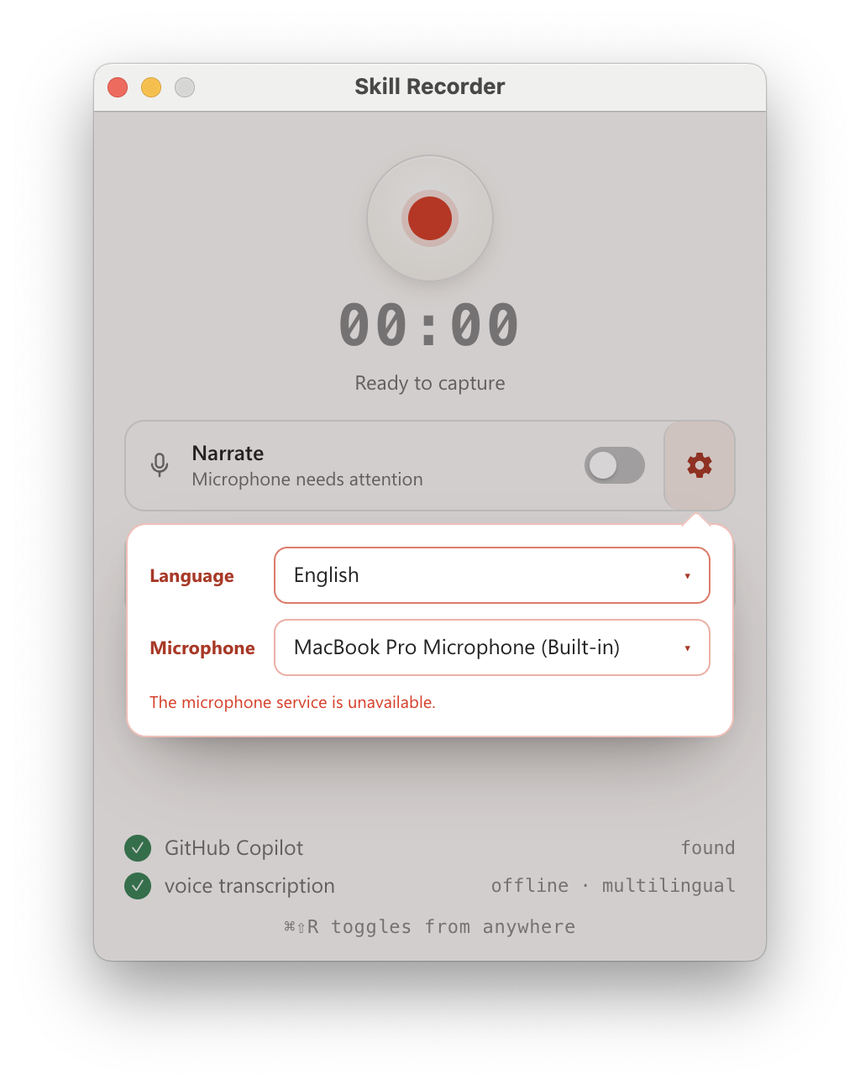
It shows the record button, the timer, the narration option with language and microphone choices, then two readiness checks: GitHub Copilot and offline voice transcription. The shortcut is Cmd+Shift+R on macOS and Ctrl+Shift+R on Windows.
The second image shows the sessions view, with the rebuilt intent and steps.
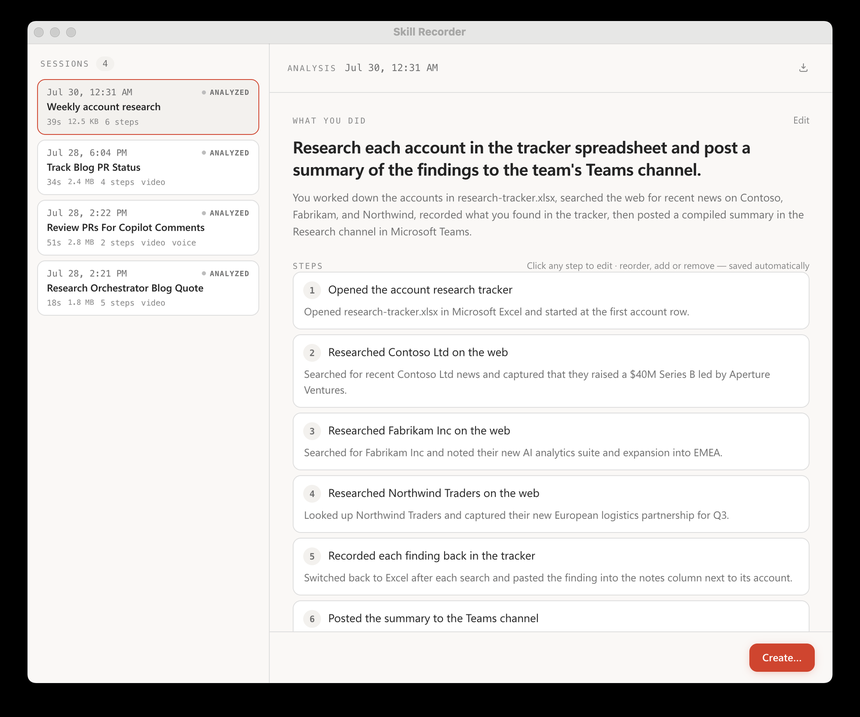
The left list gives each session’s duration, size and step count. On the right, the intent fits in one sentence, followed by steps you can edit, reorder, add or remove. The “Create” button opens the next stage. The data in this example is fictional (Contoso, Fabrikam).
What the recording captures
The README stresses one point: recording, storage, frame extraction and narration transcription all happen on your machine. Nothing leaves while you record. Only clicking “Analyze” sends data to GitHub’s cloud.
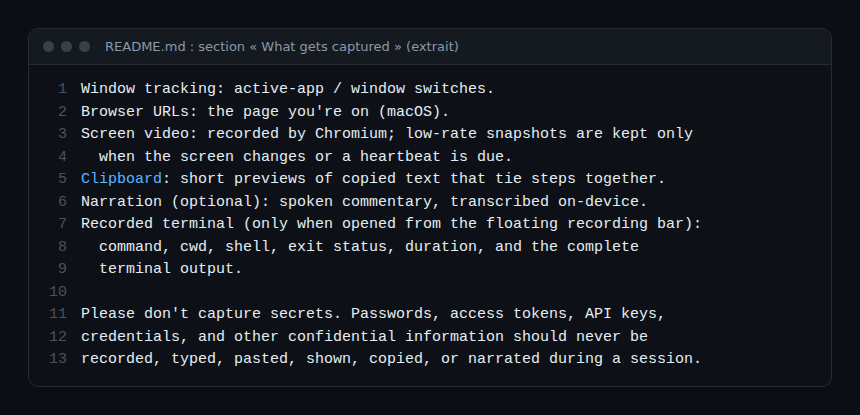
According to the README, the capture includes:
- application and window switches;
- the URLs of visited pages (on macOS);
- screen video, as spaced still frames taken when the screen changes;
- short previews of the clipboard;
- spoken narration, transcribed on the machine (a one-off download of about 252 MB on first use);
- a recorded terminal, only if opened from the floating bar: command, working directory, shell, exit status, duration and the complete output.
At analysis time, the README says what is sent: the event timeline (window and document titles, URLs, clipboard previews, commands), screen images, the narration text and bounded excerpts of terminal output. When protection is enabled, a local scan for secrets and personal data applies to the commands and the terminal transcript before any excerpt is returned.
That is where to be careful. A token visible in a window, a pasted password, an admin console left open in the background: all of it can end up in the images or the timeline. The README says never to record, type, paste, show, copy or speak a password, token or API key, and the app reminds you before every recording. The terminal transcript has no size cap imposed by the app.
Step-by-step installation
Skill Recorder ships as a “source release”: one command downloads a pinned Node.js, builds the exact version on your machine and adds the “Skill Recorder (Source)” app. Nothing is installed globally, and no administrator access is needed according to INSTALL.md.
Step 1: copy the command from the release
Open the latest release, find the “Commit-pinned installation” section and copy the whole command for your system (Windows 11 or macOS/Ubuntu). It already contains the commit identifier: do not edit it. The README warns against pasting the documentation template with <40-character-release-commit> as it stands.
Step 2: read the script before running it
The README points to the release’s “inspect-first instructions” so you can read the script first. INSTALL.md shows the principle for macOS and Ubuntu: download install.sh at the chosen commit into a file, read it, then run it. Here is the documentation template, to be replaced with the release’s commit:
commit="<40-character-release-commit>"
curl -fsSL "https://raw.githubusercontent.com/microsoft/skill-recorder/$commit/install.sh" -o install.sh
This command only downloads the file. Read it, then follow the next step shown on the release page.
Step 3: allow the screen and sign in to Copilot
On first launch, macOS asks for “Screen Recording” permission. On the first analysis, the app offers “Sign in to Copilot”; sign-in goes through the browser and times out after five minutes.
Step 4: record, analyse, create
Do the task, click Analyze, review the steps, then choose Create for a skill, an automation, or both.
Uninstalling
INSTALL.md gives removal commands per system (on macOS, the folder ~/Library/Application Support/SkillRecorder and the app in ~/Applications). The same file states that these commands leave recorded-session data intact, stored outside the installation root: delete it yourself.
Reviewing and auditing a generated skill before use
The README offers “Review SKILL.md”: it shows the complete file text, read-only, before adding or exporting. Preparing the preview writes no files, and a direct add or export remains possible without review. The README adds that this review gives visibility into the instructions, “not a security guarantee”. Here is a review method.
- Look for secrets: tokens, private URLs, environment names, email addresses, machine paths. A skill learned from a real session may contain them.
- Check the generalisation: the project says it generalises from one example (fill in one form, then all of them). Make sure “all” does not mean more than intended.
- List the tools and rights: the README says the skill prefers the agent’s native tools (
gh,web_fetch) over replaying clicks. Every tool it calls is a right to grant. - Run a scanner: a tool such as SkillSpector looks for prompt injection and leaks; see our SkillSpector article. A low score does not replace reading.
- Apply a security review: Cloudflare’s security audit skill shows what a skill built for that purpose looks like.
- Test without rights: run the automation first on a test account, outside production.
To find other ready-made skills, see the wshobson/agents plugin marketplace: review them with the same method.
Observing Skill Recorder and its skills
For a desktop app, the README describes no OpenTelemetry export. Here is what the documentation lets you follow, without inventing any feature:
- Session volume: the session list shows duration and size. Watch the storage folder, since the terminal transcript has no imposed cap.
- Launch logs: on macOS and Ubuntu,
SKILL_RECORDER_DETACHED=1starts the app in the background with logs written to a file;SKILL_RECORDER_LOG_KEEPsets how many are kept (5 by default), according to INSTALL.md. - The project’s evaluations:
npm run eval,npm run eval:terminalandnpm run eval:builderscore the describer, the handling of terminal output and the generalisation on synthetic recordings. - Agent in production: what the skill does afterwards can be followed with OpenTelemetry traces for MCP agents and supervising an enterprise coding agent.
Limits and open points
- Recent footing: versions run from v0.3.0 (late July) to v0.7.0, all before 1.0. Behaviour may change from one version to the next.
- Data in the cloud: analysis goes through GitHub Copilot and needs an authorised account. Check what your organisation allows you to send.
- Protection not guaranteed: the secret scan is described as local and optional, yet the README itself says to capture nothing confidential. We did not measure it.
- Source release: there is no signed binary; the installer builds on your machine and your organisation’s policy may block it.
- Uneven support by system: the browser URL is captured only on macOS, according to the README.
- No test on our side: everything comes from the project’s documentation.
Best practices
- Record on a test account and machine, with sample data.
- Close unneeded windows, tabs and notifications before pressing record.
- Open the recorded terminal only for the commands that matter, with no secret variable.
- Review each skill with “Review SKILL.md”, then run a scanner.
- Delete the recorded sessions once the skill is validated.
Frequently asked questions
Is Skill Recorder free?
The code is under the MIT licence. Analysis does require a GitHub account with Copilot access, whose terms depend on your subscription.
Do my recordings leave my computer?
Not while you record. When you click Analyze, the timeline, screen images, the narration text and excerpts of terminal output go to GitHub’s cloud, according to the README.
Can I trust the generated skill?
Not without review. The project states that its preview is not a security guarantee. Read the file, test outside production and run a scanner.
Conclusion
Skill Recorder turns a session into a skill you can read, but it films your screen: discipline about secrets matters as much as the tool. The project is recent and still before 1.0, so try it on a test machine first. Sources: the microsoft/skill-recorder repository and the repository’s INSTALL.md.
span.observer is an independent community blog, not affiliated with Dynatrace LLC, with the projects mentioned, or with Microsoft. The trademarks mentioned belong to their owners. Tools change quickly: always check commands and options in their official documentation.